
Devices and privacy
Where did this Apple Health reading come from?
Inspect a glucose record’s source, time and unit in Apple Health before investigating duplicates or changing sharing permissions.
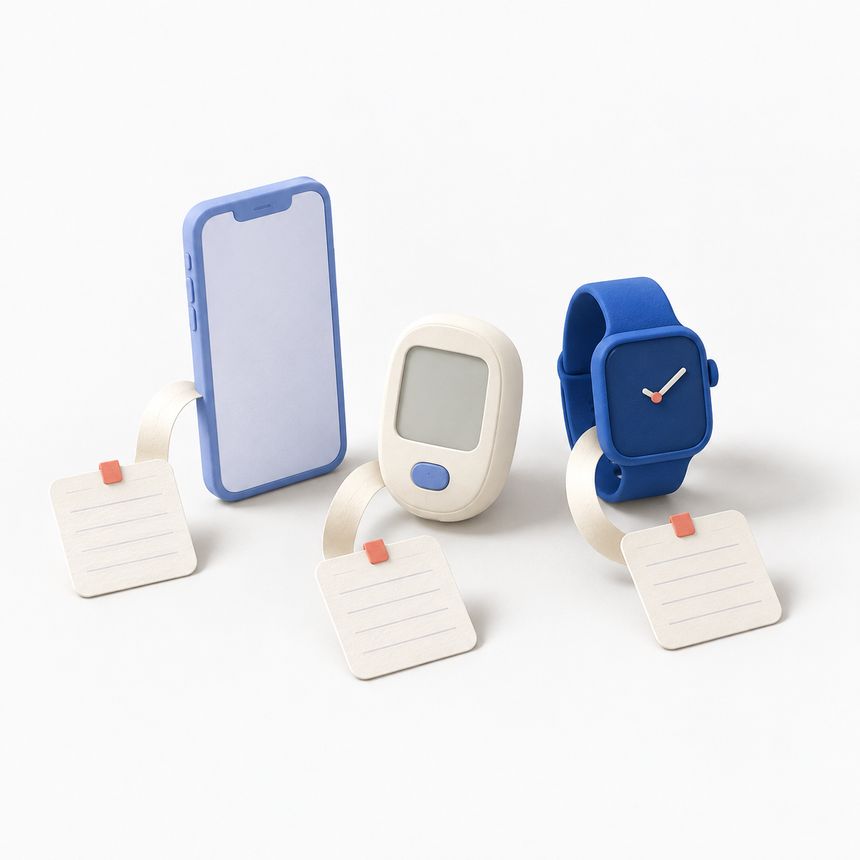
You open Apple Health and see a reading that also appears in your glucose diary. Perhaps there are two entries close together, or a value looks different from the one you remember entering. Start by checking the individual record and where it came from.
A reading may have been entered manually, supplied by an app or received from a connected device. The source and timestamp help you work out what you are looking at.
Inspect the record in Apple Health
In the Health app, open the blood glucose category and look for its recorded data. Open the entry you want to check and inspect the details available for it. In that category, Data Sources & Access also lists the apps and devices that can contribute data. Apple’s guide to managing Health data explains these views; labels can vary with the system language and version.
Write down the displayed value with its unit, the measurement date and time, and the source shown. Then compare those details with the original device or app record. Keep this note private if it contains personal health information.
This check takes place in Apple Health. Glucose and Blood Sugar Track has settings for its Health integration, but those settings are not a browser for every other app’s records.
Compare entries before calling them duplicates
Two entries near the same time deserve a closer look. Check whether their timestamps match exactly, whether one was entered manually and whether their units differ. If available, inspect the corresponding record in the source app as well.
For example, you might find an entry you typed into Health and another supplied by a diary app. That gives you a question to investigate: are both copies of the same measurement? Similar-looking values alone are not enough to decide.
Apple documents an order of priority for Health data sources. That should not be taken as a promise that every duplicate from every source disappears. Do not delete a record simply because another entry looks similar; establish what each represents first.
Check what the contributing device actually does
A source name may identify an app that recorded or relayed the result. It does not necessarily identify the device that measured glucose.
Glucose and Blood Sugar Track’s Watch companion lets you log and view readings. Apple Watch itself does not measure glucose through our app. A system that shows CGM readings on a watch uses a separate glucose sensor. The FDA distinguishes those displays from a watch claiming to measure glucose on its own. The Watch measurement guide explains how to distinguish measurement from display when checking a product claim.
For a manually entered reading, compare the saved value and unit with the measuring device. For a synced reading, follow the source information back as far as the available records allow. Avoid guessing about a connection you have not enabled or a device you do not use.
Review access separately from existing copies
The app’s Apple Health integration requires Premium. Enabling it involves permissions for the supported data; local app logging is a separate activity. You can review Health access when your sharing preferences change.
Changing permission is not the same task as deleting existing records. Apple’s Health privacy information describes Health data handling, while the app privacy guide explains optional transfers and copies outside the diary. Check both when deciding what to retain or share.
If the source remains unclear, prepare a short description for support: which screens you compared, the app and system versions, and the kind of mismatch. Remove unrelated readings, names and identifiers from screenshots. Keep the original record available while the question is being resolved, rather than making several changes that leave its origin harder to follow.
A personal tracking tool, not a medical device. The app does not measure blood sugar or provide medical advice. Review scanned values and food estimates before saving.
Download on the App Store
Can Apple Watch measure glucose? Check what the ad is really saying
Distinguish glucose measurement, a CGM reading displayed on a watch, and manual app logging before trusting a smartwatch claim.
↗
Where your glucose data goes: a privacy checklist
Understand local records, Apple Health access, optional meal scans and exported files before deciding what to share.
↗
Set up logging reminders that fit your day
Use reminders as practical prompts, check iPhone notification settings, and keep missing entries honest without chasing a perfect streak.
↗