
Devices and privacy
How to convert glucose readings from mg/dL to mmol/L
How to convert mg/dL to mmol/L and back, why the result can be off by one, and how to keep value, unit and time together in your glucose log.
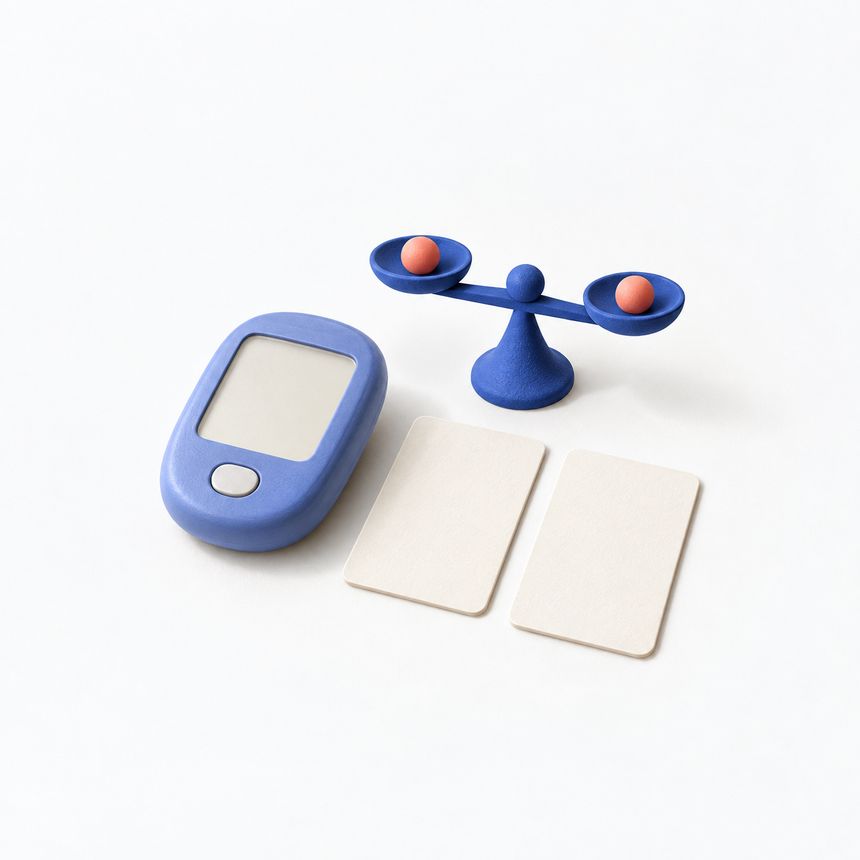
A glucose reading doesn’t mean much without its unit. Once a reading moves from your meter or sensor into an app, a note or a report, the unit is what tells the next person how to read it.
So keep three things together: the value, the unit and the time you measured it. Glucose and Blood Sugar Track works with both mg/dL and mmol/L. Check which unit your meter shows and which one the app uses on the entry screen.
Copy the whole result from your meter
Before you type in a reading, look at the unit printed next to the number on your meter. Enter the reading in that same unit and check the entry once more before you save. If the entry screen shows the other unit, switch to the matching one in the app settings first. Then check the entry screen again before you type the number.
Don’t guess the unit from how big the number looks. If an old note has no unit, look up the original reading on your device if you still can. If you can’t find it, say so when you talk about that record with someone.
The official app listing confirms that both units are supported. Basic glucose logging is available on the free plan. You don’t need an export or an Apple Watch to save a reading with its unit.
What you save and what you see
The unit setting in the app changes how your glucose readings are shown. After you change it, older entries in your history may appear in the other unit. That doesn’t mean anything was measured again: it’s the same reading in a different unit.
If an entry looks off, compare its date and time with the original measurement and check the unit on both. Keep the original source handy while you look into it. And don’t add a second reading just to make two screens show the same number.
If the data comes from Apple Health, you can open the individual record and see where it came from. Apple explains how to view and manage Health data. Our guide to Health record sources shows what to compare before you decide that two entries are two different measurements.
Converting between mg/dL and mmol/L
Glucose converts between the two units with a factor of 18. Sacks and colleagues (2023) give the rule in a laboratory guideline published in Diabetes Care: to go from mg/dL to mmol/L, divide by 18.
- mmol/L to mg/dL: multiply by 18.
- mg/dL to mmol/L: divide by 18.
Two examples, as plain arithmetic: 6.5 mmol/L × 18 = 117 mg/dL. 150 mg/dL ÷ 18 = 8.33, which rounds to 8.3 mmol/L.
Most small gaps between two screens come from rounding. Readings in mmol/L usually have one decimal place, while readings in mg/dL are whole numbers. Convert one way and back again and you can end up one out. 100 mg/dL ÷ 18 = 5.56, shown as 5.6 mmol/L. Multiply 5.6 by 18 and you get 100.8, which rounds to 101 mg/dL. The reading itself hasn’t changed.
If you’d like to see your readings in the other unit, change the display unit in the app settings instead of retyping converted numbers. Converting by hand is useful when you need to read a note, a printout or a message that uses the other unit. If you write a converted number down, keep the original value and unit next to it, for example “117 mg/dL (meter: 6.5 mmol/L)”.
Converting only changes how the number is written. It doesn’t change what the reading means.
Keep the unit in view when you share
Crop a screenshot too tightly and the label that explains the number can disappear. Before you send a reading, check that the unit and the date are visible, and the time if it matters. Hide personal details that have nothing to do with it, but leave the result and its context in the picture.
In a written note, give the time, value and unit their own fields, or put them on one short line. If the person you’re sending it to uses the other unit, ask which they’d like and send a clearly labelled view or report.
PDF and CSV exports in Glucose and Blood Sugar Track need Premium. Open the file once it’s created and check the unit labels and the date range. If you open the CSV in a spreadsheet app, read the column headings rather than assuming it looks like the app. The report preparation guide walks you through that check.
Sort out a mismatch before you share
If you spot what might be a typo, confirm the correct result on your device or in another reliable original record. Write the mismatch down somewhere else while you work out how to fix the entry. Check the time as well as the digits and the unit. If the controls aren’t clear, ask app support.
If you’ve already sent a wrong copy, say which reading you corrected when you send the new one. Editing your diary doesn’t change a file or screenshot you sent earlier.
Before you share a record, check that it shows the unit and when it was measured. If either is missing, add it.
A personal tracking tool, not a medical device. The app does not measure blood sugar or provide medical advice. Review scanned values and food estimates before saving.
Download on the App Store
How to log glucose on Apple Watch with GlucoseTrack
Add a glucose reading with the Digital Crown, check recent entries and understand pending iPhone sync in the GlucoseTrack Watch app.
Where did this Apple Health reading come from?
Inspect a glucose record’s source, time and unit in Apple Health before investigating duplicates or changing sharing permissions.
Can Apple Watch measure glucose? Check what the ad is really saying
Distinguish glucose measurement, a CGM reading displayed on a watch, and manual app logging before trusting a smartwatch claim.