
Using the app
How to log glucose on Apple Watch with GlucoseTrack
Add a glucose reading with the Digital Crown, check recent entries and understand pending iPhone sync in the GlucoseTrack Watch app.
A quick entry on your wrist can save you from trying to remember a number later. With Glucose and Blood Sugar Track, you enter a reading from your glucose meter on Apple Watch, then continue with your diary on iPhone. The Watch app is a Premium feature; it does not measure glucose or connect directly to a CGM sensor.
Get the phone and watch ready
Install the app on your paired iPhone and Apple Watch. Open the iPhone app first and check that Premium is active. If the watch asks you to unlock the app, complete that step on iPhone. Check the current device requirements on the App Store listing.
Before entering a reading, look at the unit beside the number on the watch. The Watch app receives your glucose unit from iPhone. It must match the reading you are copying: mmol/L and mg/dL are different scales. If it does not match, check the iPhone settings and let the watch update before saving.
Add a reading
- Open the app on Apple Watch and choose the glucose entry action, labelled Log Glucose in English.
- Turn the Digital Crown until the displayed value matches your meter. The starting number on this screen is a default, not a new measurement.
- Check the value and unit together, then tap Save.
The Watch entry uses the time you save it. This screen has no date or time picker. If you are recording an older reading, use the iPhone entry form and set its original date and time there. Do not save it on the watch as though it had just happened.
Check your recent entries
Return to the Watch home screen and open History. Each row shows an entry, its unit where relevant, and how long ago it was recorded. The watch keeps a short list of recent entries, rather than the complete iPhone archive.
Look at the timestamp as well as the number on the home screen or watch face. A displayed value can be an earlier entry; seeing it again does not mean another measurement was taken.
What “pending” means
A saved entry can wait on the watch when it cannot yet reach iPhone. The home screen shows a pending count while entries await confirmation from the phone. Appearing in Watch history is therefore not, by itself, proof that the iPhone diary has received it.
When the devices can communicate again, open the apps and check the iPhone diary. Confirm the value and time before entering the same reading a second time. If entries remain pending, keep the watch app installed and check the connection with your paired iPhone.
Continue on iPhone
Use the glucose diary to review your records on a larger screen. Before sharing anything, follow the report checklist; PDF and CSV export require Premium.
Prefer paper for some days? The free glucose and food diary has room for readings and meal notes. If you later copy a paper entry into the app, keep its original time.
For the difference between measuring glucose and showing it on a watch, read our guide to Apple Watch glucose claims.
Where the number on your watch comes from
A supported CGM system
- Separate CGM sensor measures
- Manufacturer’s compatible Watch app displays
The sensor supplies the reading. Follow that manufacturer’s device and country requirements; this is not a GlucoseTrack CGM connection.
Manual logging in GlucoseTrack
- Your glucose meter measures
- You enter the reading on Apple Watch
- The entry syncs to your paired iPhone
Premium Watch feature. The watch records the value you enter; delivery to iPhone can remain pending.
Inside the Watch app
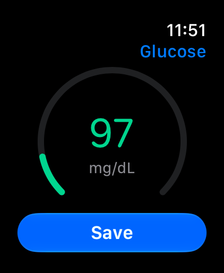
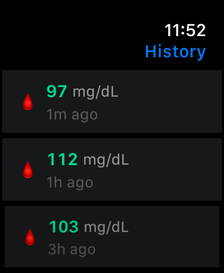
Screenshots from the app with fictional records and an English interface. These examples are not personal targets.
A personal tracking tool, not a medical device. The app does not measure blood sugar or provide medical advice. Review scanned values and food estimates before saving.
Download on the App Store
Where did this Apple Health reading come from?
Inspect a glucose record’s source, time and unit in Apple Health before investigating duplicates or changing sharing permissions.
↗
Can Apple Watch measure glucose? Check what the ad is really saying
Distinguish glucose measurement, a CGM reading displayed on a watch, and manual app logging before trusting a smartwatch claim.
↗
Where your glucose data goes: a privacy checklist
Understand local records, Apple Health access, optional meal scans and exported files before deciding what to share.
↗